In this tutorial we will show you how you can send a Paperless transaction to a customer.
Prerequisites
- You did register your company at payactive (see tutorial)
What You'll Learn
- How to create a Paperless invoice using our portal.
- How to pay the invoice (from your end customer's perspective).
- How to cancel the payment process (from your end customer's perspective).
- How to pay the invoice using a manual transfer (from your end customer's perspective).
- How to inspect events of a transaction using our portal.
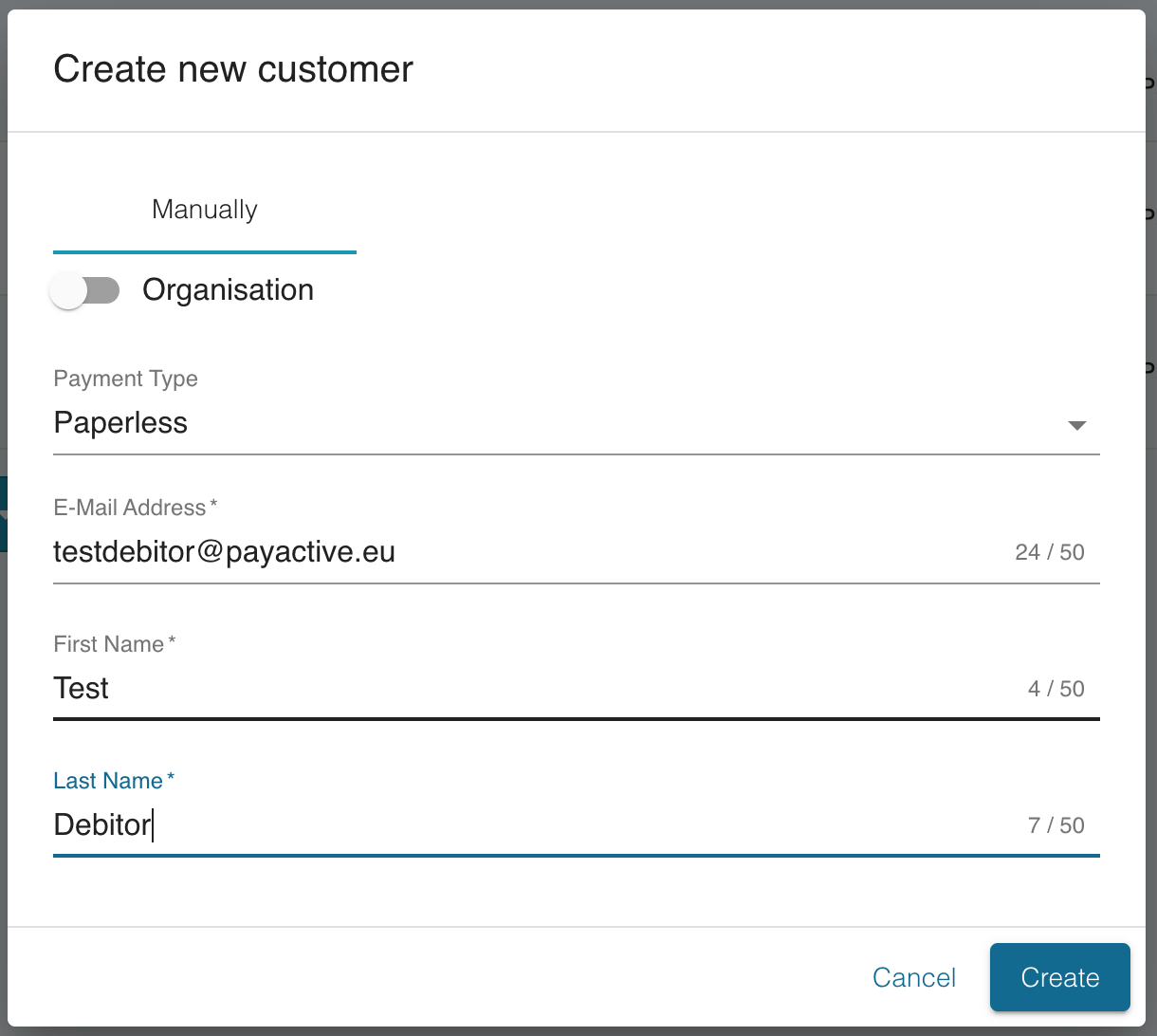
First, you need to create a debitor using our portal.
- Go to Payments and click on "New payment". Then complete the form using the customer we just created and your own test data.
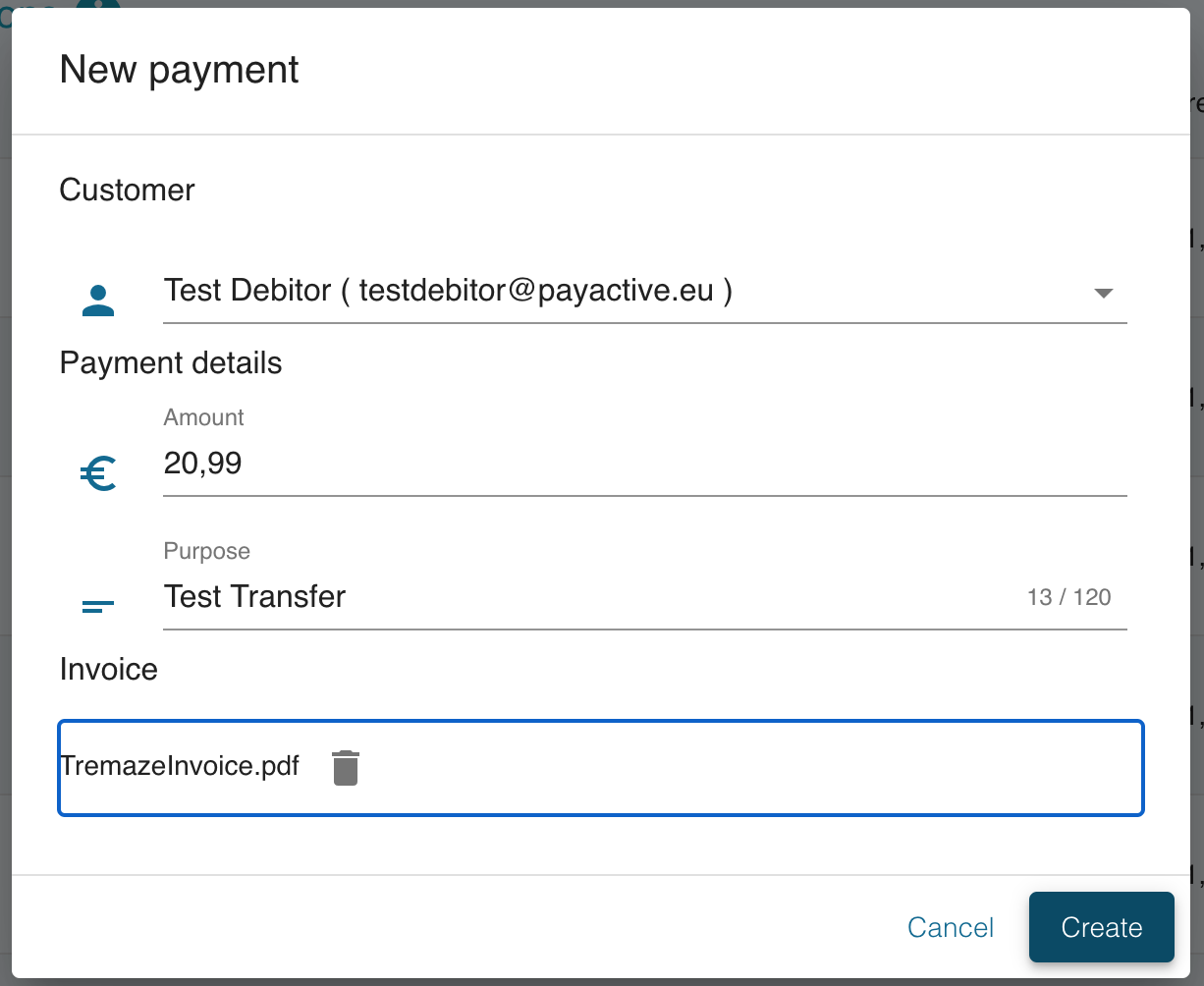
Click on "Create" and you will see that the Paperless transaction was created. The state Pending suggests that the transaction is waiting for payment.
- In the Actions column click on the three dots -> Events. You will see that an EMail was sent out to the debitor.
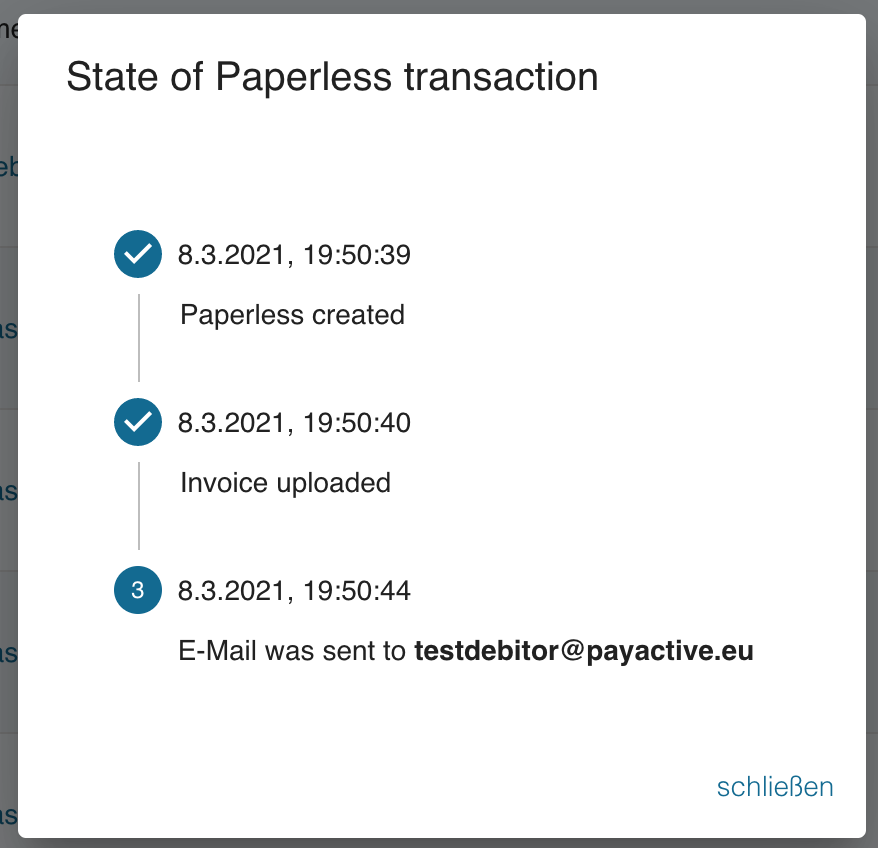
In the next section you will see how the process looks from the customer's perspective.
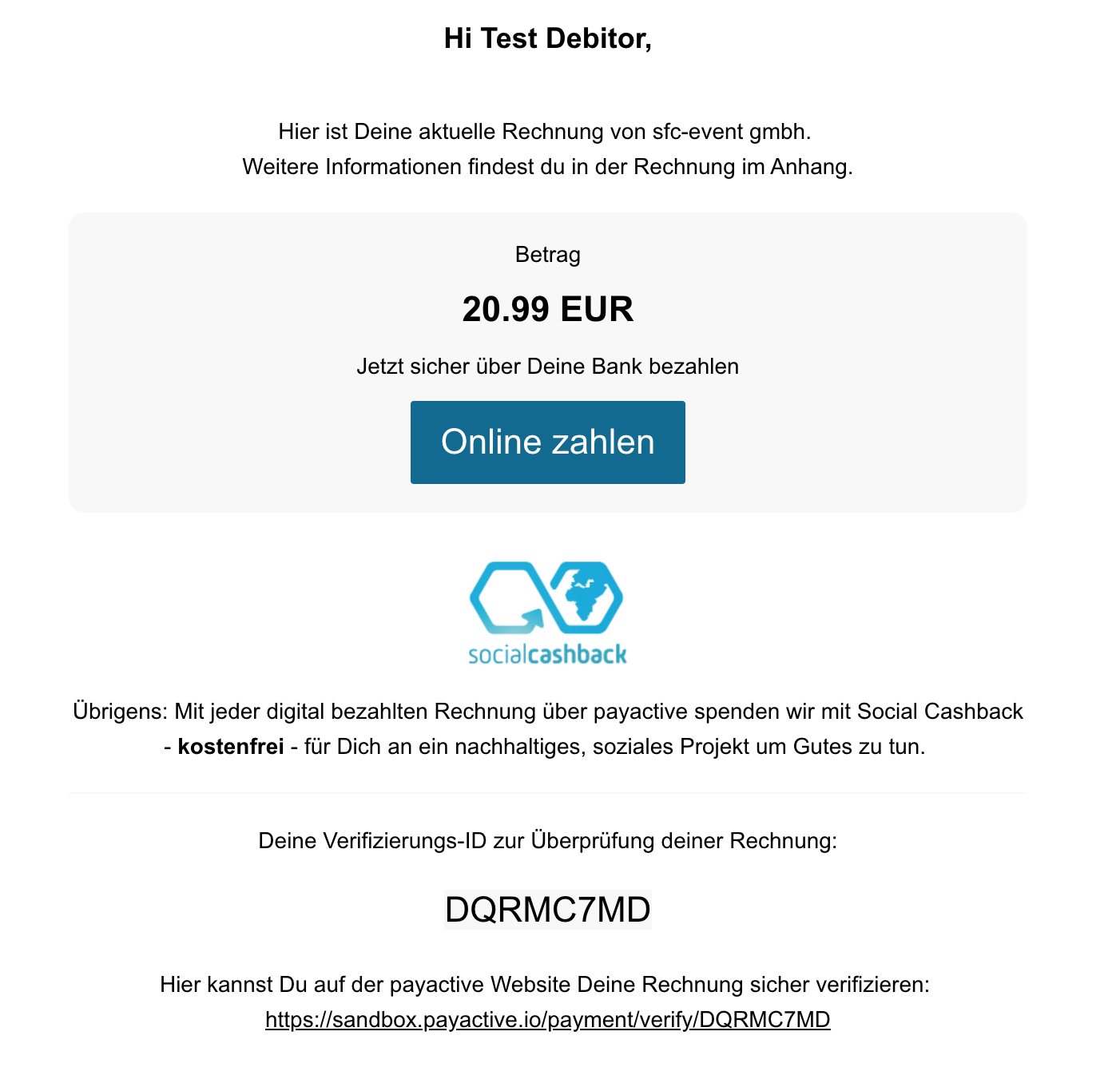
In the EMail the customer has two choices.
- They can pay the invoice directly by clicking on "Online Zahlen".
- They can use the verification code to check if the invoice is valid.
Let us verify first and click on the verification Link.
In order to verify you need to enter your last name and click on "Weiter".
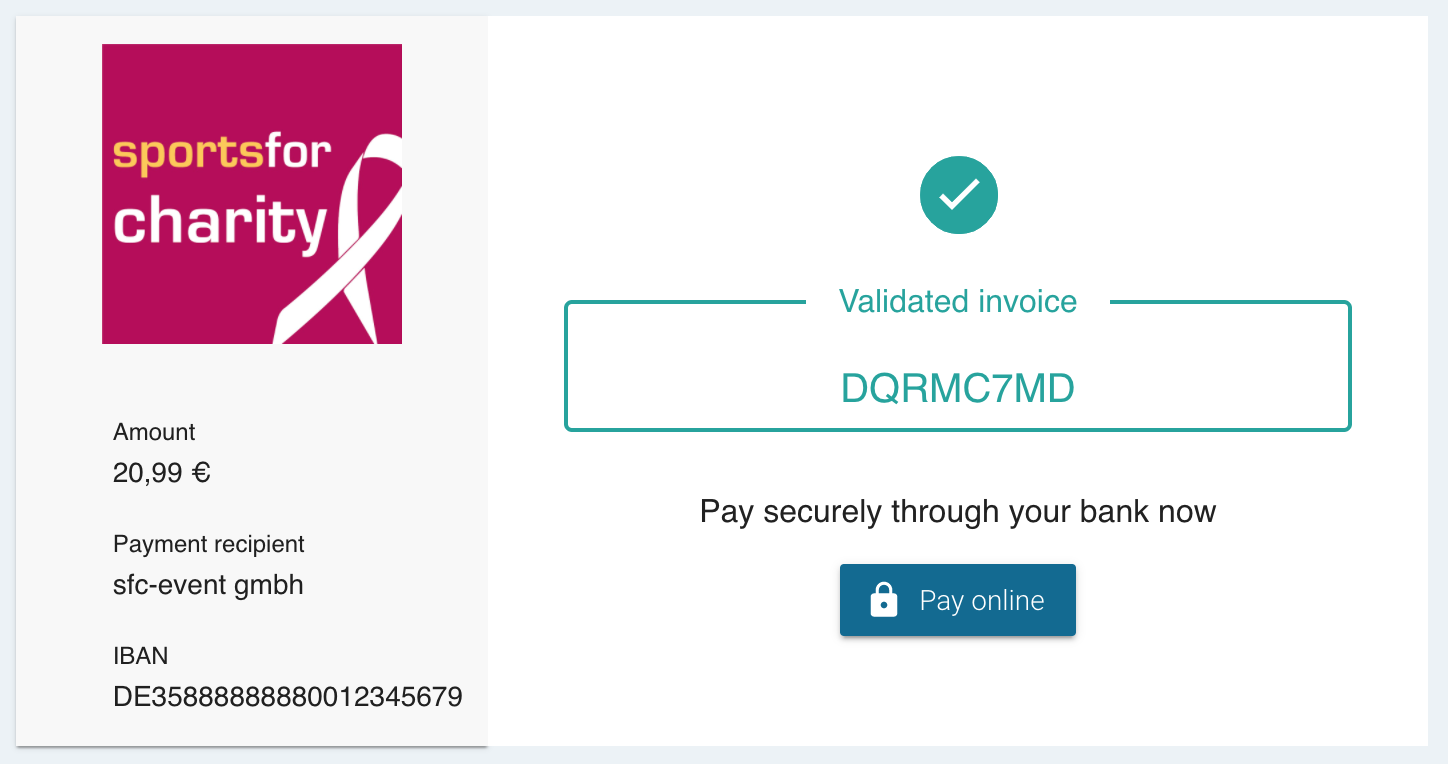
You are presented with more information regarding your payment such as the creditor's name and IBAN.
The debitor enters the payment flow either through verification (previous section) or directly from the EMail.
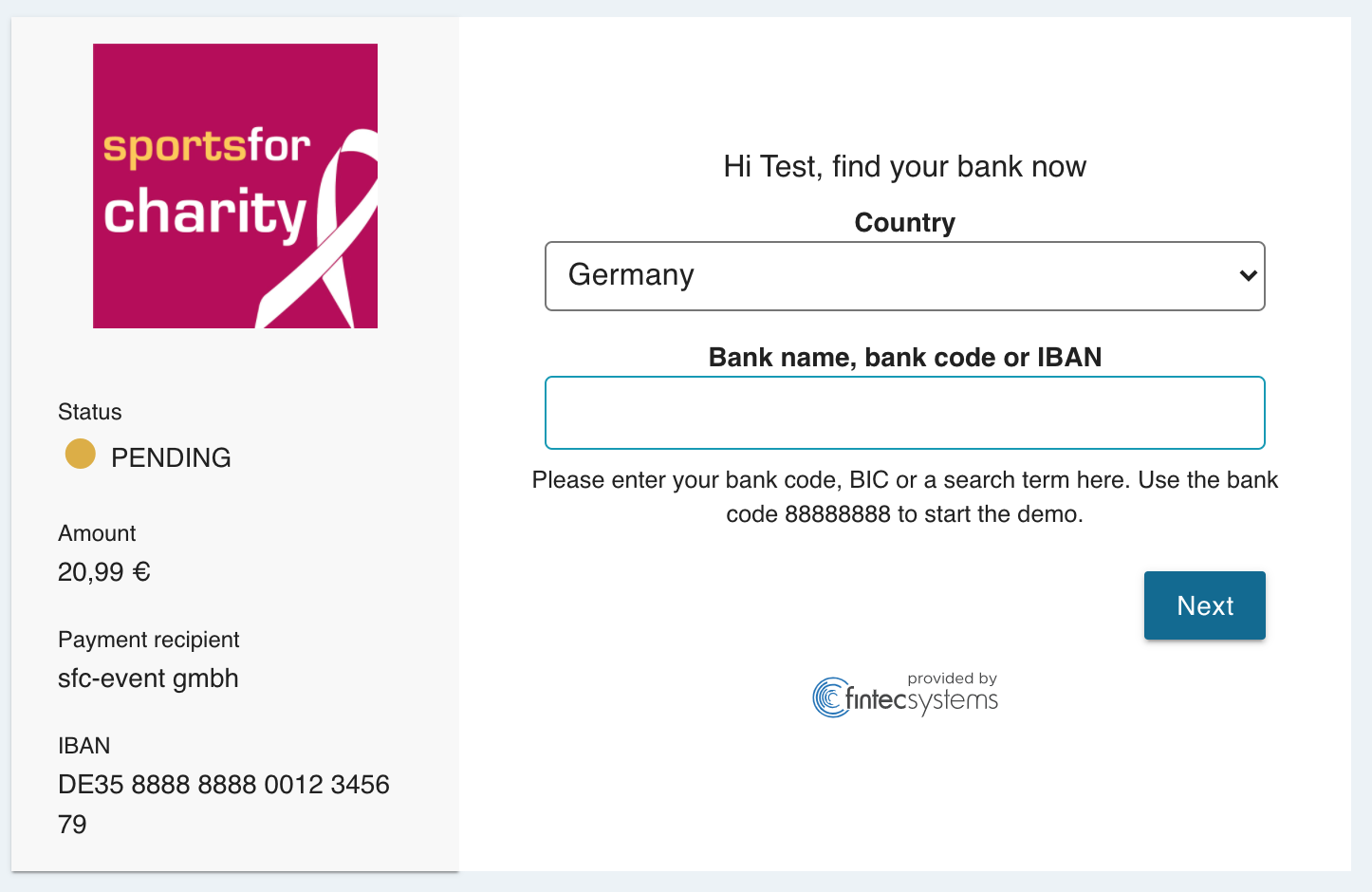
- First select your bank. The form autocompletes once you start typing the bank name or identifiers such as IBAN or BLZ.
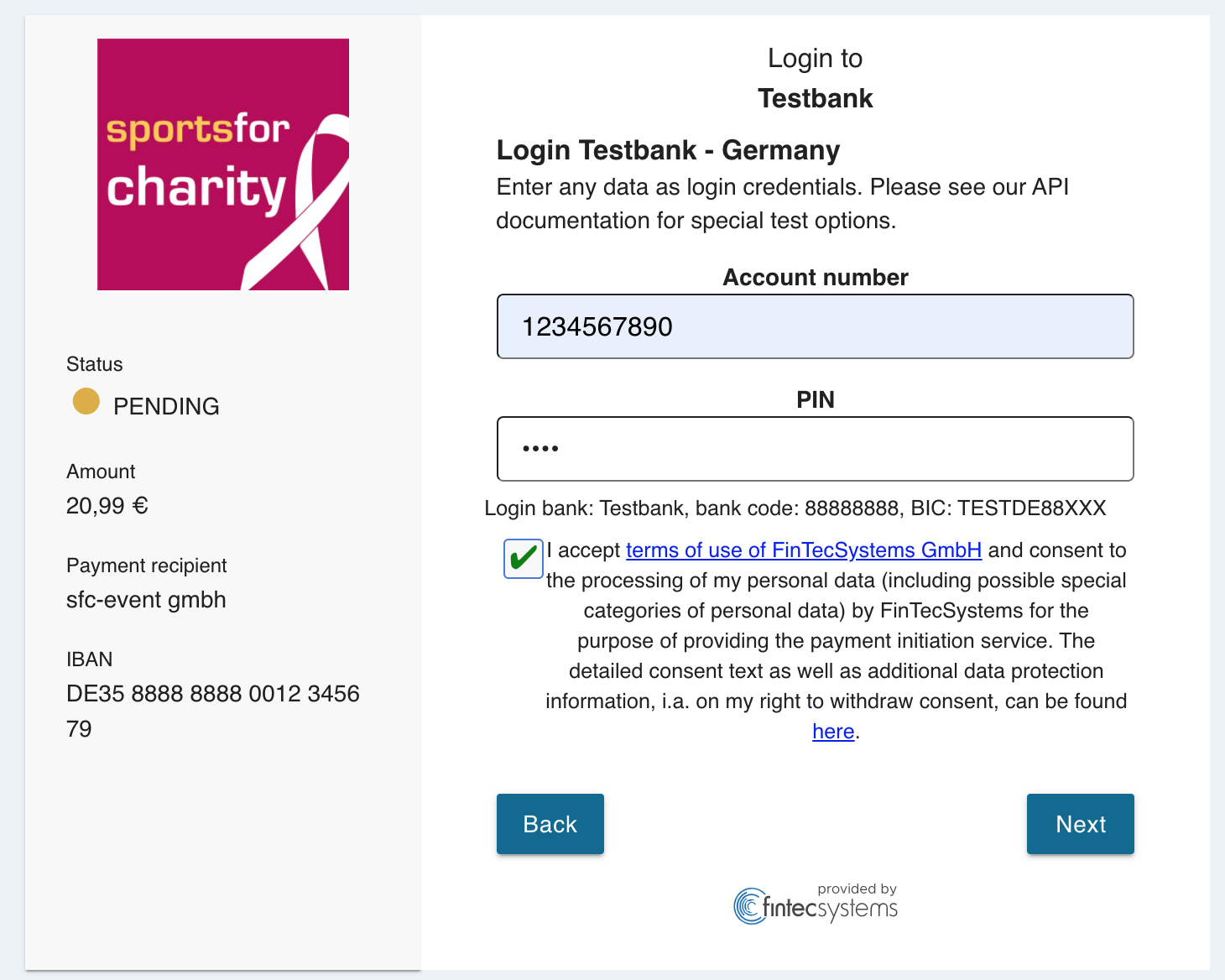
- Enter your bank credentials (on Sandbox enter any credentials)
- After you authenticated, you are presented with more information about the payment such as the creditor's information. You can also download the invoice.
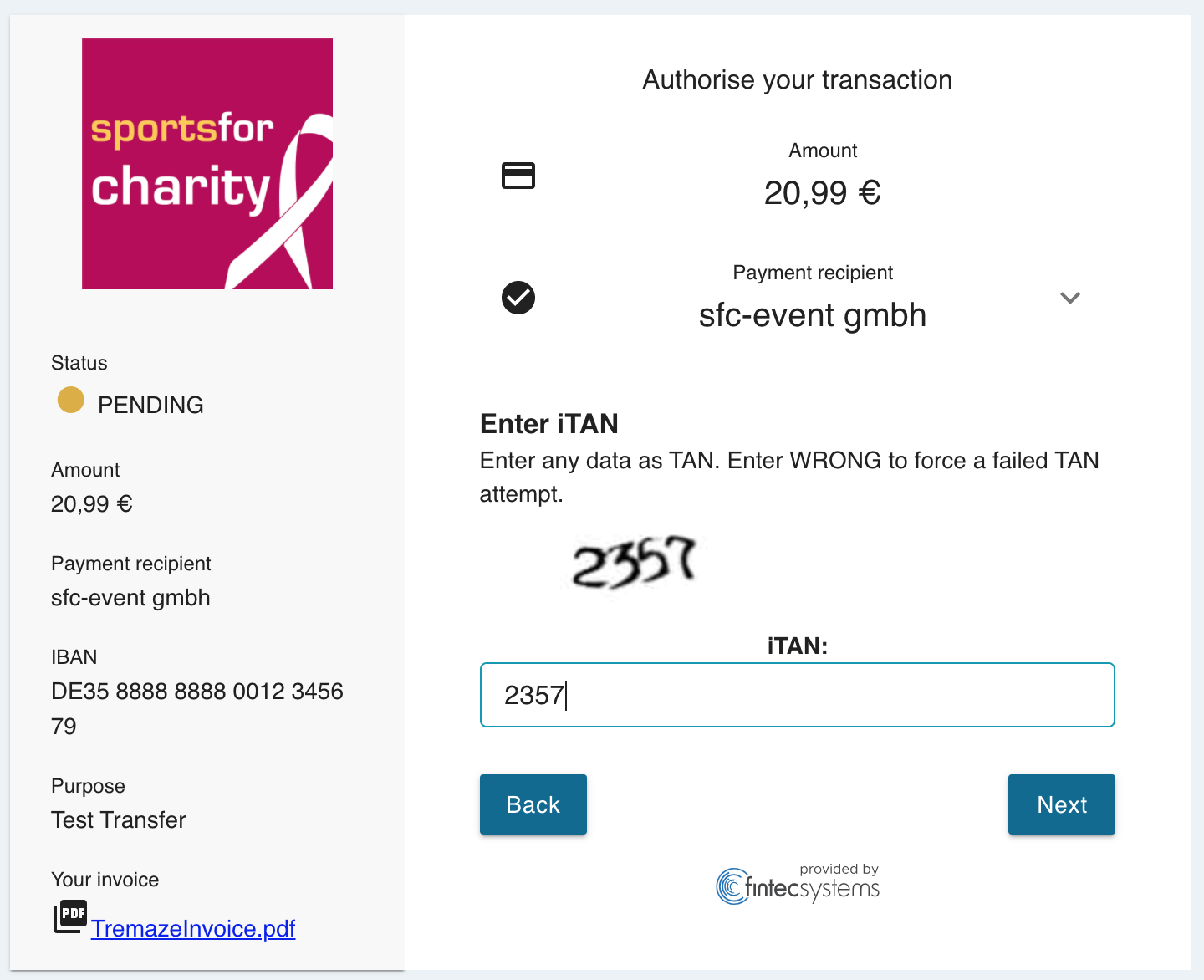
- Authorise the payment by providing your 2nd factor (in Sandbox environment this is just a 4 digit code that is displayed).
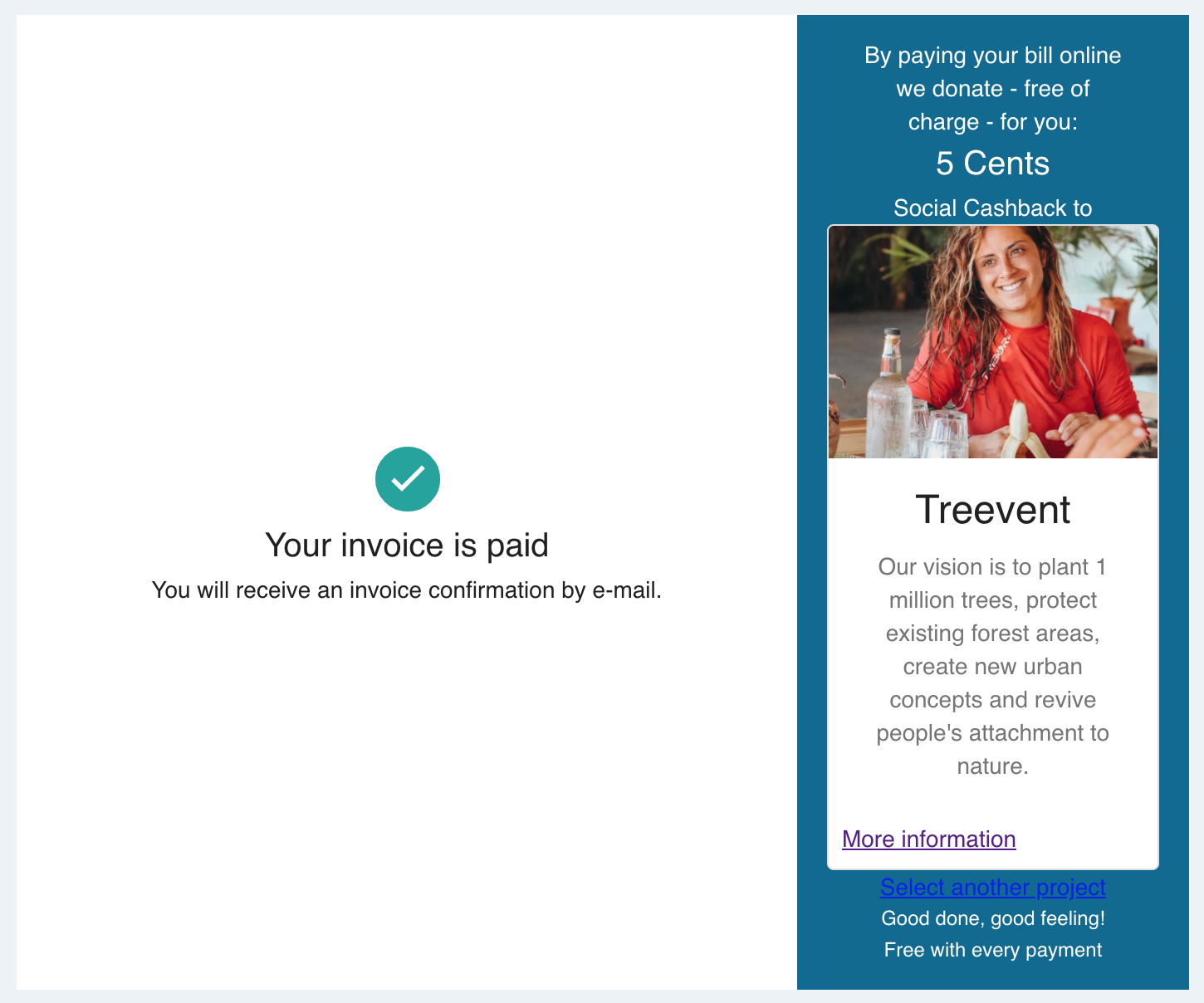
The final screen shows information about the social cashback that was generated by this transaction.
A Paperless transaction can be cancelled due to two reasons.
- There is a problem in the payment process.
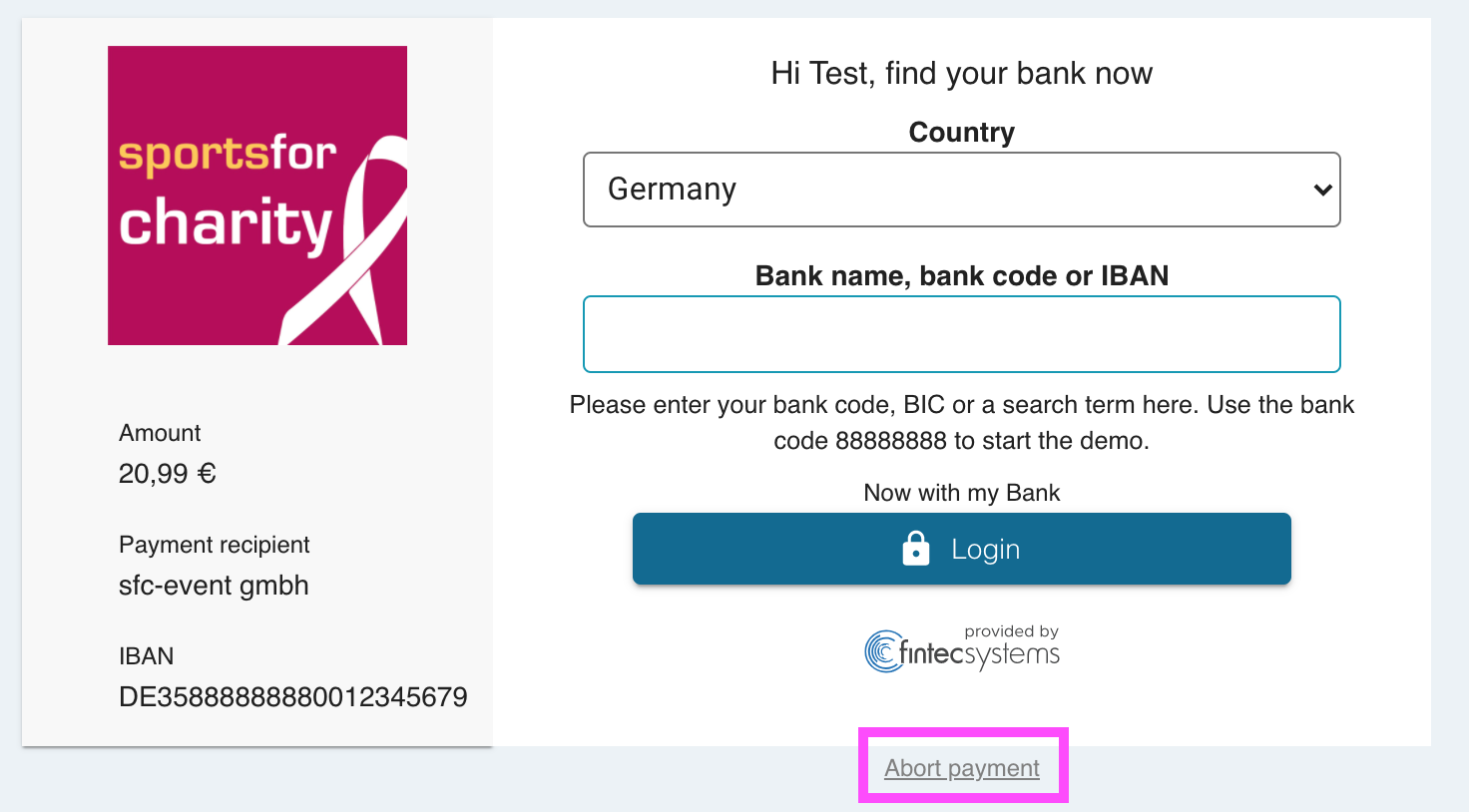
- The debitor intentionally clicks the "Zahlung abbrechen" link below the payment form.
Let us try it out. In order to do that we will need to create another Paperless transaction.
- Repeat section "Create a Paperless transaction" and create a fresh Paperless.
- In the payment flow click on "Zahlung abbrechen".
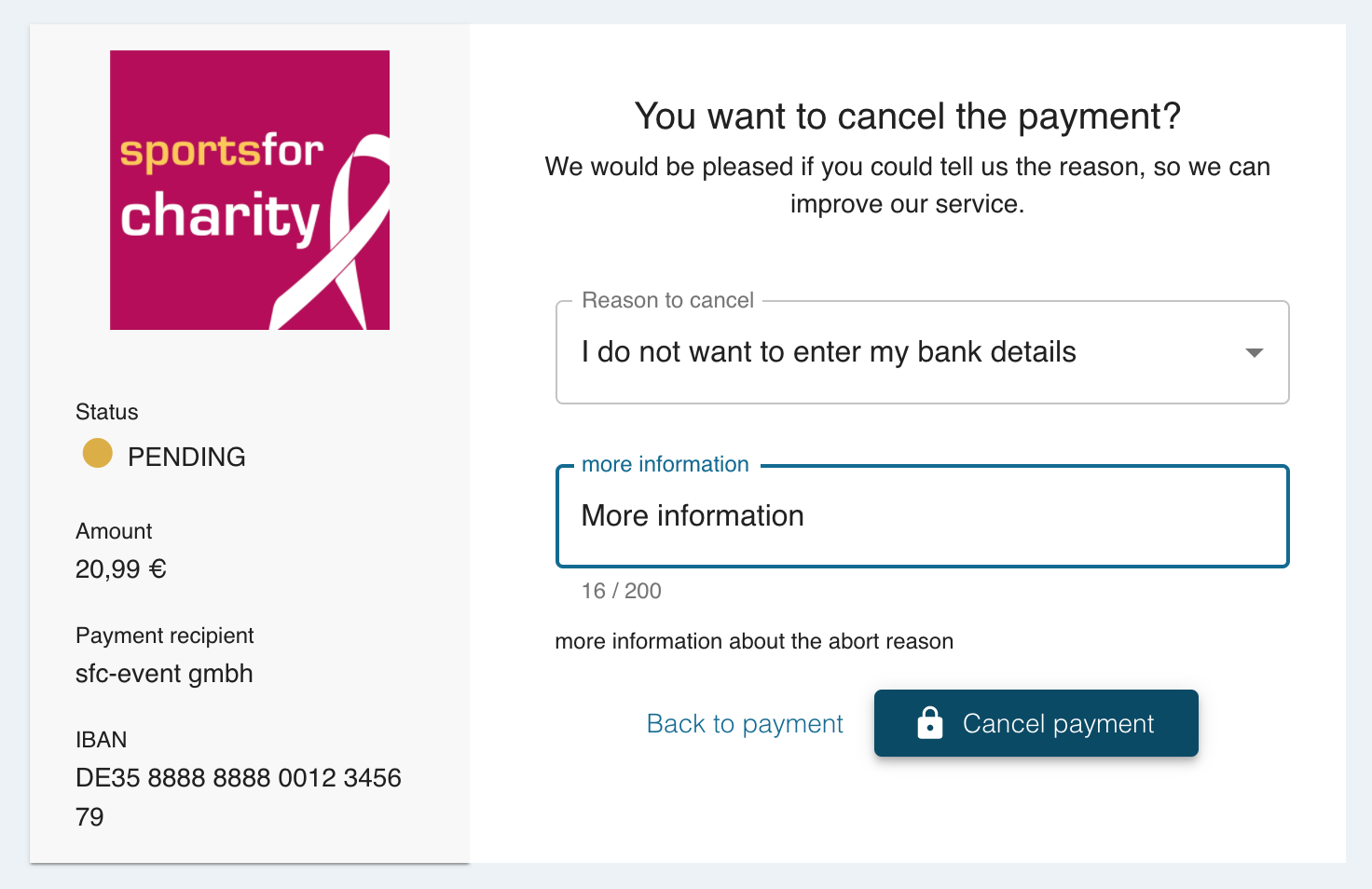
- Select a pre-defined reason or enter a custom message, then Click "Zahlung abbrechen"
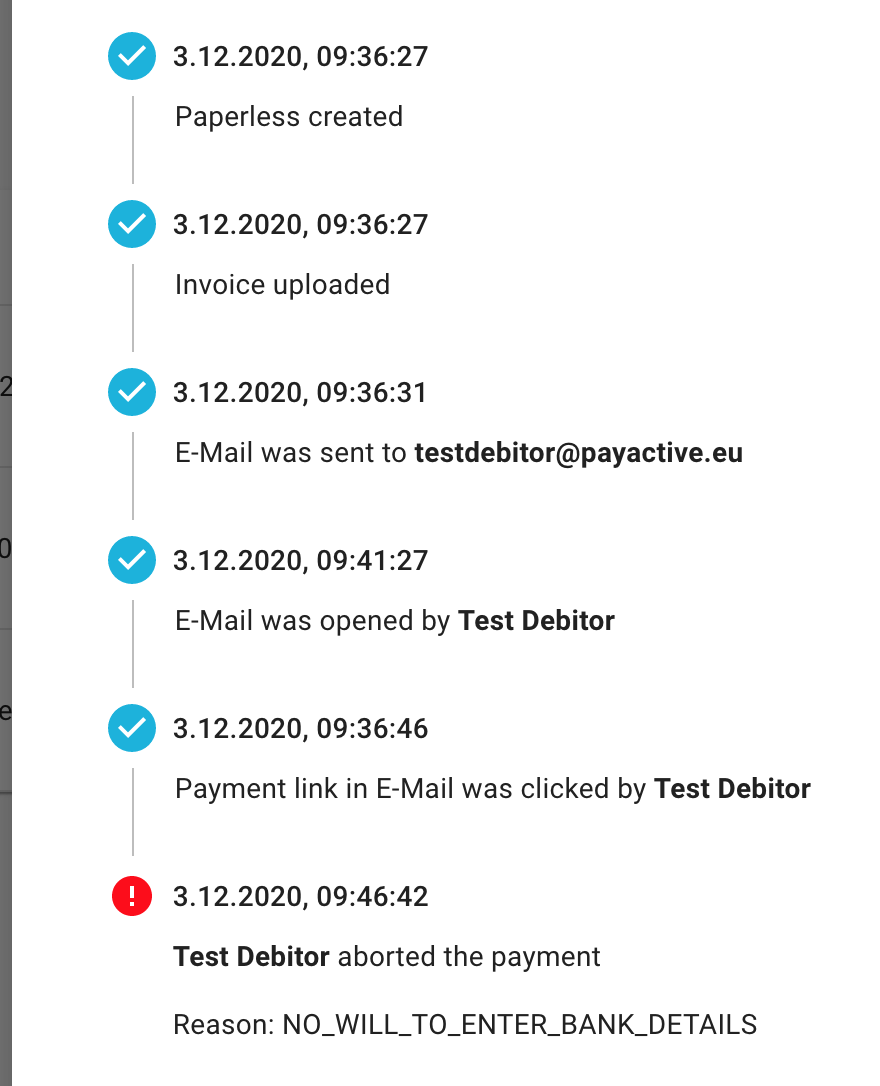
- In the portal you can see the state changed to "ABORTED". Also you can inspect the events and gain more insights about the reason.

In the previous step you learned how a customer can cancel a payment. They can now make the decision to return to online payment or to make a manual transfer.
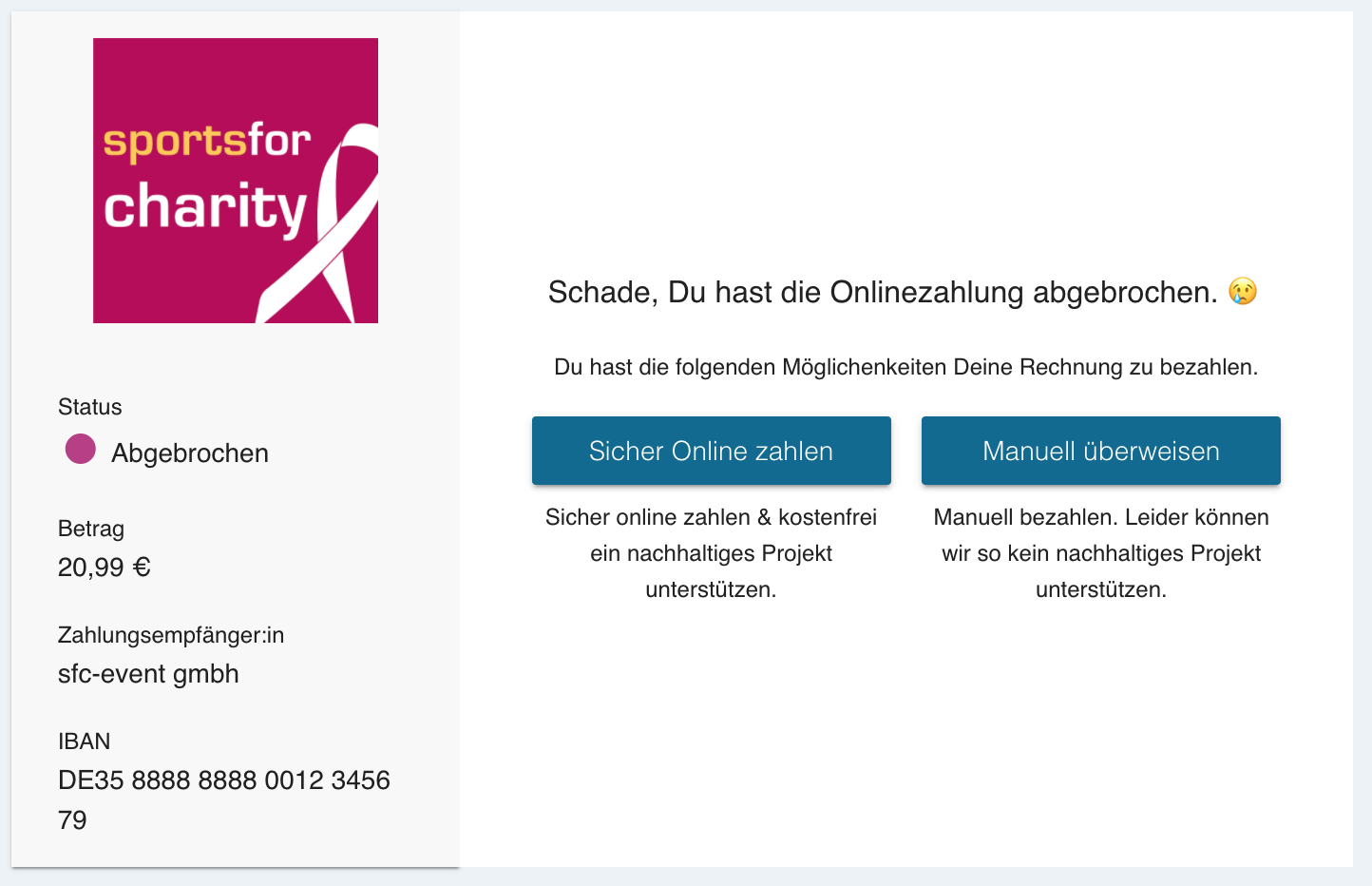
- Click on "Manuell überweisen".
- In the following form you can now copy and paste the necessary information into your online banking.
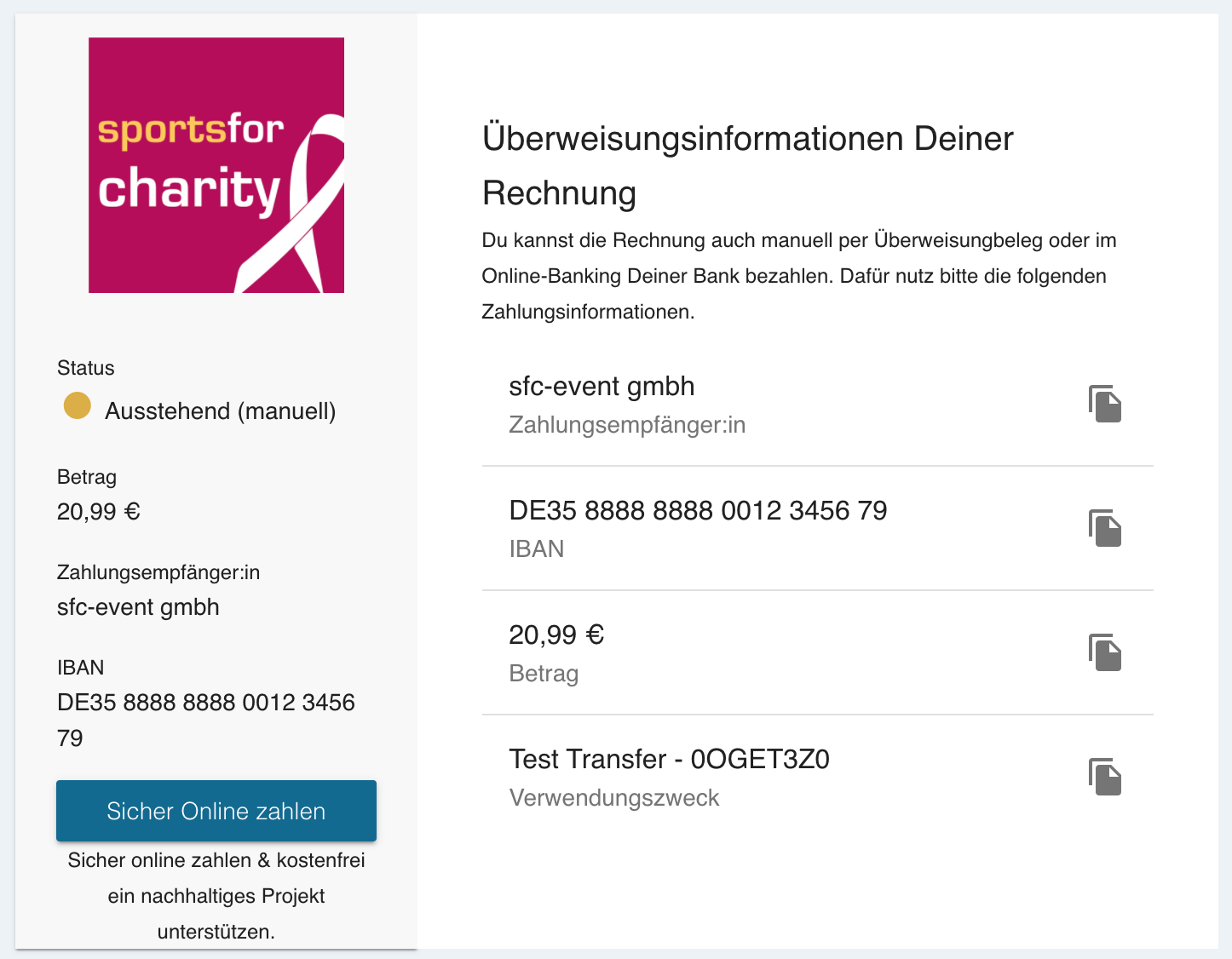
- In the portal you can now see that status set to "Manual".

You learned how you can create and send Paperless invoices to your customers. Also you should now understand the payment flow from your customer's perspective.
Learn more
- Automate your Paperless flows and checkout our API.